How to Use Cricut Infusible Ink Transfer Sheets
To use Cricut Infusible Ink sheets, cut and weed the design, place it ink-side down on a compatible blank, and press it using Cricut's material-specific directions. Let the blank cool before removing the sheet.
On this page (9 sections)
- What is Cricut Infusible Ink, and how does it work?
- What do you need before you cut Infusible Ink sheets?
- How do you prepare a blank before pressing?
- How do you cut Cricut Infusible Ink sheets?
- How do you place and press the transfer?
- What should you do after pressing?
- Why might an Infusible Ink transfer look faded or uneven?
- Can Cricut Infusible Ink make white designs?
- What should you remember when using Infusible Ink sheets?
To use Cricut Infusible Ink sheets, mirror and cut your design, weed away extra ink, then place it ink-side down on a compatible blank and press according to Cricut's instructions. Prepare the blank first, keep the transfer in place, and let it cool before peeling away the liner.
Infusible Ink transfers into compatible materials with heat. It works differently from iron-on vinyl, which sits on top of a surface, so choose a compatible blank and follow the heat guide for that item.
What is Cricut Infusible Ink, and how does it work?
Cricut Infusible Ink is a transfer material that bonds with compatible blanks when heat is applied. The sheets contain solid ink that releases during pressing, leaving the design in the blank's surface.
The result depends on the blank. Cricut's compatible blanks are made for this process; a random cotton shirt or coated object may not give the result you expect.
For the difference between sheet transfers and printer-based sublimation, see Infusible Ink vs Sublimation Ink: Everything to Know. If you want to create a printed design with a cutting machine, read how to use Cricut for sublimation printing.
What do you need before you cut Infusible Ink sheets?
Gather a Cricut cutting machine, Infusible Ink transfer sheet, compatible blank, heat-resistant tape if needed, butcher paper, and a suitable heat press. Check the blank and Cricut heat guide for the exact materials and pressing directions.
You'll also need a clean, dry work surface. Keep lint, dust, and scraps away from the blank because they can affect the transfer.
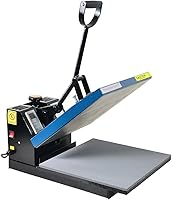
A heat press should cover the design area evenly. The Fancierstudio Digital Heat Press has a 15 x 15 inch platen and electronic time and heat controls, which may suit larger projects if its setup fits your workspace.
Use the temperature and time recommended for your particular blank. A press's available settings don't replace Cricut's material-specific directions.
How do you prepare a blank before pressing?
Prepare a compatible blank by removing moisture, lint, and wrinkles before adding the transfer. Follow the blank maker's instructions and Cricut's heat guide for any pre-press steps.
For fabric, use a lint roller over the whole pressing area. Even tiny fibers can show in the finished transfer, so check the surface under good light.
Position seams, collars, and zippers away from the press area when possible. They can keep the surface from lying flat, which makes even pressure harder to maintain.
If your blank is a shirt, our guide to how to use Cricut Infusible Ink on T-shirts covers shirt-specific setup. For a mug project, follow how to use Cricut Infusible Ink sheets on a mug.
Can a waterslide decal sheet replace an Infusible Ink sheet?
No. Waterslide decal paper is a different transfer method and isn't a substitute for Cricut Infusible Ink sheets.
It uses printed ink and a water-slide application rather than a cut design transferred with heat.
Hayes Waterslide Decal Paper is made for inkjet printing and has a separate process involving clear acrylic spray, drying, cutting, and soaking. Use it only for projects suited to waterslide decals.
For an Infusible Ink design, use the intended sheet and a compatible blank. If you're comparing printer transfer papers for another project, see our best inkjet printer for transfer paper guide.
How do you cut Cricut Infusible Ink sheets?
Place the sheet ink-side up on the cutting mat, then mirror the design and cut it with the machine's recommended setting. Check the current Cricut instructions for the sheet type and machine before starting.
- Create or upload the design in Cricut Design Space.
- Mirror the design before sending it to cut.
- Place the sheet on the mat with the ink side facing up.
- Select the material setting Cricut recommends for the sheet.
- Cut, then unload the mat carefully.
Mirroring matters most for words, numbers, and designs with a clear left-to-right direction. Without mirroring, these elements can transfer backward.
Cut only what you need and save unused material according to Cricut's storage guidance. Keep the sheet flat and dry until use.
How do you weed an Infusible Ink design?
Weed the design by removing the extra sheet around the cut shapes while leaving the design attached to its clear liner. Bend the liner gently to help release scraps, and use a weeding tool for small areas if needed.
Avoid touching the inked face more than necessary. Oils or debris can interfere with a clean transfer.
Keep small interior pieces that belong in letters or shapes. Check the design against your original before placing it on the blank.
How do you place and press the transfer?
Center the design ink-side down on the blank, secure it if needed, then press using the time, temperature, and pressure Cricut specifies for that blank. Place the liner facing up and use the protective layers called for in the heat guide.
Lay the blank on a flat surface of the press. If the fabric has seams or raised areas under the design, reposition it so the transfer area sits flat.
Use heat-resistant tape only if needed to hold the design in place. Avoid shifting the sheet after positioning, since movement during pressing can blur or ghost the image.
For heat handling, the KITCHEN PERFECTION Smoker BBQ Grill Gloves are cotton-lined, silicone gloves made for handling hot grilling and cooking items. They are not presented as a Cricut accessory, so follow your heat press instructions and use tools intended for your press.
Do not assume gloves make a hot platen safe to touch. Keep hands clear of the heated surface and follow the press maker's safety instructions.
What should you do after pressing?
Let the blank cool as Cricut directs, then lift the transfer sheet carefully. Keep the design still while it cools to reduce the chance of smearing or shifting.
Remove butcher paper and any other protective layers as instructed for your material. Discard used protective paper rather than reusing it if Cricut's guidance calls for a fresh sheet.
Check the result after the blank is cool. If part of the design did not transfer, review the blank compatibility, placement, pressure, and time before trying again.
Why might an Infusible Ink transfer look faded or uneven?
A faded or uneven transfer can come from an incompatible blank, uneven pressure, movement, or incorrect time and temperature. Compare your process with Cricut's instructions for the specific blank instead of repeating the same press setting.
Check that the design stayed flat and that the press covered the whole transfer area. Seams, folds, lint, or debris can interrupt contact.
If the design shifted, avoid moving the transfer during pressing. Tape can help secure it when appropriate, but it should not cover areas that need direct heat unless the instructions allow it.
Don't layer or reuse transfer sheets unless Cricut specifically says that method is suitable. Each project may have different placement and pressing requirements.
Can Cricut Infusible Ink make white designs?
Infusible Ink sheets don't print white ink, so a white design usually comes from the blank showing through an unprinted area. Plan the design around the blank's color and the ink colors available.
On a colored blank, empty areas reveal that surface color rather than becoming white. Learn more in Can Cricut Infusible Ink Transfer White Designs?.
For designs drawn with Cricut pens instead of cut sheets, see how to use Cricut Infusible Ink pens. The pen workflow has different setup steps.
What should you remember when using Infusible Ink sheets?
Follow this order: confirm the blank is compatible, prepare it, mirror and cut the design, weed it, then press using Cricut's material-specific directions. Let the blank cool before peeling the liner.
Choose a 15 x 15 inch heat press if its platen suits your design size and workspace. Use a different transfer method, such as waterslide decal paper, only when the surface and project call for that process.
For a small hard-surface project, see how to make Infusible Ink coasters. For best results, let the blank and Cricut's instructions guide the settings.
Frequently asked questions
Which side of Cricut Infusible Ink sheets goes down?
Place the design ink-side down against the blank, with the clear liner facing up. Follow Cricut's instructions for your material and machine, and check that the cut design is oriented correctly before pressing.
Do you mirror Infusible Ink designs before cutting?
Yes, mirror the design in Cricut Design Space before cutting, especially when it includes words or an asymmetric image. The cut design is placed face down, so mirroring makes it read correctly after transfer.
What blanks work with Cricut Infusible Ink sheets?
Use blanks made for Infusible Ink or marked compatible with it. Cricut's system is designed for compatible surfaces, including certain polyester fabric blanks; check the blank's instructions and Cricut's heat guide before pressing.
Can you use a regular iron with Infusible Ink sheets?
Cricut recommends a Cricut EasyPress or heat press that can apply steady heat and pressure across the design. A household iron may not provide even heat over the whole transfer, so follow the directions for your specific blank and tool.