Epson F170 Sublimation Printer Review: Worth It? (October 2026)
The Epson SureColor F170 is a compact, dedicated sublimation printer for home projects and small shops that want Epson sublimation ink and a 150-sheet tray. It prints only, so choose another option if you need scanning, copying or media wider than 8.5 inches.
On this page (9 sections)
- What does the Epson F170 review show?
- What comes with the Epson F170?
- How much workspace does the Epson F170 need?
- Is the Epson F170 easy to set up at home?
- What ink should you use in an Epson F170?
- What are the Epson F170’s main limits?
- How does the F170 compare with other Epson and craft printers?
- Who should choose the Epson F170?
- Is the Epson F170 worth choosing?
The Epson F170 is a dedicated compact sublimation printer for home crafters and small businesses that want Epson sublimation ink, a 150-sheet tray and a separate transfer-printing setup. It prints only, supports paper up to 8.5 inches wide and does not connect to mobile devices.
This review covers the F170’s included supplies, footprint, computer workflow and limits. We also compare it with a phone photo printer and a general-purpose EcoTank so you can choose the right kind of printer for your projects.
What does the Epson F170 review show?
The Epson SureColor F170 is a good fit for dedicated sublimation printing on a desk or craft bench. Its main strengths are the included Epson ink, closed auto-feed tray and compact size; its main limits are print-only operation, no mobile connection and media up to 8.5 inches wide.
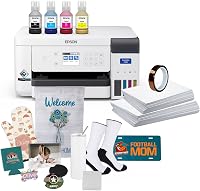
Johnson Plastics Plus Epson SureColor F170 Dye-Sublimation Printer.: Best for a dedicated home setup

- Dedicated dye-sublimation printing
- 150-sheet auto-feed tray
- Mac and Windows print software
- Compact 13.7 x 14.8 x 7.4 in body
A dedicated Epson sublimation printer with genuine Epson ink, a closed paper tray and a starter set of supplies. It suits home projects when you want a separate printer for transfers.
Pros
- Genuine Epson sublimation ink included
- 150-sheet dust-resistant closed tray
- Compact footprint
- Bundle includes paper and thermal tape
Cons
- Print only, with no scanner or copier
- Mobile-device connection is not supported
- Maximum media width is 8.5 in
The bundle includes an AC power cable, user guide, sublimation starter kit, thermal tape, and 8.5 x 11 in and 8.5 x 14 in paper. Epson’s PrecisionCore printhead and genuine sublimation ink are designed for transfers to soft and rigid materials.
We compared the features and included supplies with the needs of people choosing a first dedicated sublimation printer. Our score weighs specs, features and buyer feedback against what you're shopping for.
What makes the Epson F170 different from a regular printer?
The F170 is designed for dye-sublimation ink and transfer work, rather than everyday documents. That matters because a standard inkjet and a sublimation printer use different ink workflows.
For a fuller explanation of printer types, read what printer you need for sublimation. If you already own an Epson inkjet, first understand how to convert an Epson printer to sublimation before deciding whether conversion suits your needs.
What comes with the Epson F170?
The Epson F170 bundle includes the printer, genuine Epson sublimation ink and starter supplies to begin planning transfers. It also has a 150-sheet auto-feed tray with a closed, dust-resistant design.
| Detail | Epson SureColor F170 |
|---|---|
| Print type | Dye-sublimation |
| Functions | Print only |
| Maximum media width | 8.5 in |
| Tray capacity | 150 sheets |
| Dimensions (D x W x H) | 13.7 x 14.8 x 7.4 in |
| Ink | Black, cyan, magenta and yellow |
| Computer software | Mac and Windows |
| Mobile connection | Not supported |
| Included supplies | Ink, user guide, AC cable, starter kit, thermal tape, 8.5 x 11 in and 8.5 x 14 in paper |
The full set of Epson sublimation inks comes in bottles with auto-stop technology for refilling. Epson recommends genuine ink for print quality and performance, and its dye-sublimation ink is certified under ECO PASSPORT by OEKO-TEX for textile production.
The bundle includes starter supplies, but you still need compatible blanks, a heat press and a suitable design workflow. If mugs are your main project, compare sublimation printers for mugs.
Keep transfer paper dry and follow the instructions for each blank and press.
How much workspace does the Epson F170 need?
The F170 measures 13.7 inches deep, 14.8 inches wide and 7.4 inches tall, so it can fit on many home craft desks. Leave working room around it for loading paper, reaching the controls and placing supplies.
Measure the full space where you plan to use it, including clearance to open or access the tray. The printer’s compact body does not include space for a computer, heat press, blank storage or finished transfers.
A separate heat press may need more bench area than the printer. To compare packages with both machines, see sublimation printer and heat press bundles.
Plan the workflow so printed transfer paper can move from the printer to the press without getting creased or mixed with ordinary paper.
Is the Epson F170 easy to set up at home?
The F170 is built as a dedicated printer with a user guide and Mac and Windows print software. Its included ink and starter materials reduce the number of separate supplies to source at the beginning.
Set it up according to Epson’s instructions, and use the specified ink and media for sublimation work. Since the printer does not support mobile-device connections, have a compatible Mac or Windows computer ready for the design and print steps.
The 150-sheet closed tray can help keep paper protected from dust between print jobs. Load and store paper according to the printer’s guidance.
What ink should you use in an Epson F170?
Use genuine Epson sublimation ink made for the F170. The bundle includes a full set of Epson sublimation ink in black, cyan, magenta and yellow, and Epson recommends genuine ink for print quality and printer performance.
For details on the ink workflow and what to check before replenishing supplies, see what ink to use in an Epson F170. Avoid treating standard inkjet ink as a substitute for sublimation ink.
Color output also depends on design settings, transfer paper, blank material and heat-press settings. Follow the instructions for those materials and make a small sample transfer when setting up a new workflow.
What are the Epson F170’s main limits?
The F170’s clearest limits are 8.5-inch maximum media width, print-only operation and no mobile connection. Those boundaries matter if your projects depend on larger sheets or phone-based printing.
Is 8.5-inch paper wide enough for your projects?
The F170 supports media up to 8.5 inches wide, which covers the included 8.5 x 11 in and 8.5 x 14 in paper. It may be too narrow for larger apparel designs, wide panels or projects that need multiple pieces joined together.
If you need more width, compare 13 x 19 sublimation printers.
Check the printable area of your blank, not only its overall dimensions. A design may need margins and placement space, so choose a wider printer if the transfer artwork must exceed the F170’s supported width.
For larger projects, compare it with a wide-format sublimation printer. That guide can help you decide whether a wider printer’s added workspace fits your output needs.
Do you need scanning or copying?
No, the F170 only prints. If you often copy papers or scan artwork, you may prefer a separate all-in-one printer for those tasks.
The Epson EcoTank ET-2803 is an inkjet all-in-one with printing, scanning and copying. It is not a dedicated sublimation printer, so compare its everyday functions with the F170’s purpose-built transfer workflow.
How does the F170 compare with other Epson and craft printers?
The F170 is the most direct fit when you want a dedicated Epson sublimation printer. The alternatives below serve different needs: 4 x 6 inch phone photos or everyday inkjet printing with scan and copy functions.
Epson F170 vs. Sawgrass SG500
The Epson F170 and Sawgrass SG500 are both dedicated sublimation-printer options, so compare their supported media, software workflow, ink supply and included materials. The right choice depends on the blank sizes you print and the setup you prefer.
For a broader comparison, see printers for sublimation and heat transfer.
Read our Sawgrass SG500 sublimation printer review alongside this one. Compare the supported paper sizes and current manufacturer guidance before choosing between the two.
F170 vs. converting an Epson EcoTank
A converted EcoTank can appeal if you already have a compatible printer and are prepared to manage a separate sublimation setup. For a compatible EcoTank, compare sublimation ink for the Epson ET-15000 before converting.
The F170 arrives designed for sublimation, with Epson sublimation ink included.
The best sublimation ink for Epson ET-2800 guide covers an ink option for that separate route. Don't put sublimation ink into an ET-2803 that has been used with standard ink unless you have confirmed the conversion process and compatibility.
F170 vs. a 4 x 6 photo printer
The Liene M100 is a photo printer for 4 x 6 inch pictures, not a transfer printer for sublimation blanks. Its thermal dye-sublimation process creates photos on compatible photo paper, a different job from printing transfer designs.
Liene M100 4x6'' Photo Printer: Best for phone photo prints

- 4 x 6 in photo prints
- Thermal dye-sublimation photo printing
- Built-in Wi-Fi hotspot
- 100 sheets of photo paper included
A compact photo printer for 4 x 6 in pictures from phones or computers. Its photo-paper process is for photos, not the same workflow as printing sublimation transfers for blanks.
Pros
- Phone printing through its app or hotspot
- Includes photo paper and color cartridges
- Small 4 x 6 in photo format
Cons
- Not a transfer printer for sublimation blanks
- Limited to 4 x 6 in media
Its phone-friendly workflow and included photo paper suit small personal prints. Choose the F170 for sublimation transfers to compatible blanks, and choose the Liene when the goal is compact photo output.
F170 vs. an all-in-one inkjet
The Epson EcoTank ET-2803 is an everyday inkjet with print, scan and copy functions, while the F170 is dedicated to sublimation transfer printing. The ET-2803 also supports wireless printing, AirPrint and Epson Smart Panel.
Epson EcoTank ET-2803 Wireless Color All-in-One Supertank: Best for everyday home documents
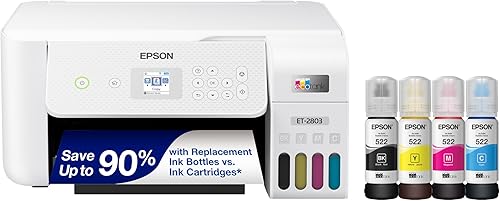
- Wireless color inkjet printing
- Refillable ink tanks
- Flatbed scanning and copying
- AirPrint and Epson Smart Panel support
A general-purpose inkjet for home documents, scanning and copying. It is not a dedicated sublimation printer, so don't assume its standard ink can make sublimation transfers.
Pros
- Print, scan and copy in one unit
- Refillable ink tanks
- Wireless and mobile printing support
Cons
- Not sold as a dedicated sublimation printer
- Changing an inkjet to sublimation requires a separate conversion decision
Its refillable tanks serve general home printing, not the F170’s sublimation workflow. If you want to convert an inkjet, first compare the setup, ink compatibility and ongoing care involved.
For dark designs and color planning, our guide to best black sublimation ink covers a related supply choice. Ink selection must match the printer and process you use.
Who should choose the Epson F170?
Choose the F170 if you want a compact, dedicated sublimation printer with Epson ink included and your projects fit within 8.5-inch media. It suits a home craft space or small shop that uses a computer and wants a separate transfer-printing machine.
Skip it if you need mobile printing, scanning, copying or wider media. A general-purpose all-in-one may cover document tasks, while a wider sublimation printer better fits larger transfers.
The F170 is also not a photo printer for family snapshots. Keep photo printing and sublimation transfer printing as separate needs when comparing models.
Is the Epson F170 worth choosing?
The Epson F170 is worth considering when you want a purpose-built Epson sublimation printer with a compact footprint and starter supplies. Its limits are clear: print only, computer-based setup and paper up to 8.5 inches wide.
Pick the F170 for dedicated home sublimation projects. Pick an all-in-one for everyday documents and scanning, a photo printer for 4 x 6 inch pictures, or a wide-format model when your designs outgrow its paper width.
Frequently asked questions
Is the Epson F170 a sublimation printer?
Yes. The Epson SureColor F170 is a dedicated dye-sublimation printer that uses Epson sublimation ink.
It prints transfer designs for compatible soft and rigid materials, but it is a print-only machine, so it doesn't scan or copy.
Can the Epson F170 print from a phone?
The F170 does not support connection to mobile devices. Its print software supports Mac and Windows, so plan to send designs from a computer rather than relying on a phone or tablet.
What size paper can the Epson F170 use?
The F170 supports media up to 8.5 inches wide, and its bundle includes 8.5 x 11 inch and 8.5 x 14 inch sublimation paper. Check your design dimensions and blank size before choosing a printer, since larger projects may call for a wide-format model.
Can the Epson ET-2803 replace the F170 for sublimation?
No, the ET-2803 is a general-purpose inkjet, while the F170 is designed for dye-sublimation printing. Converting a compatible inkjet involves a different setup and ink choice, so compare that process with buying a dedicated printer before deciding.